

On a Drupal site, a Webform posts its submissions to Drupal, and a search page queries Drupal. Quant module 2.3 moves both to Quant: Quant Forms takes the submissions and Quant Search answers the search. The public pages can then be static files on the Quant edge, and Drupal stays with the editors. Episode 1 of Securing websites when attackers have AI follows these steps on a Drupal 11 demo site.
Why Drupal should leave the public path
Drupal answers its login form at /user/login, and it also answers paths under /index.php/ (A second lock on the admin areas, in the Quant docs). While Drupal serves the public site, every visitor can send requests to those paths, to each Webform and to each contributed module, and a request for a page runs PHP.
In the php2shell case, two remote code execution flaws in PHP itself, CVE-2026-109618 and CVE-2026-109619, were disclosed on 21 October 2026, and on 26 October CISA added both to its Known Exploited Vulnerabilities catalogue. Mandiant estimates that in 2025 exploitation started, on average, seven days before a patch was released (M-Trends 2026).
With Quant Forms taking the Webform submissions and Quant Search answering the search page, no visitor’s request needs Drupal. A page that Quant serves from static files runs no application code, so a request for it cannot reach a flaw in PHP or Drupal. Drupal still needs the patch, but on a host that only the editors can reach, an anonymous scanner cannot find it in the meantime.
What the Quant module does
The Quant module for Drupal 11 is drupal/quantcdn, release line 2.x. The login to Quant, Quant Forms for Webform and search pages need version 2.3 or later. The module pushes pages, files and redirects to a Quant project, and it tracks content changes. After the first push, it pushes a page when an editor saves it, unpublishes the page in Quant when an editor unpublishes or deletes it, and adds a 301 redirect when the address of a page changes (What is pushed after the seed).
With Log in to Quant, you approve the site in the Quant dashboard and choose or create its project. The module then limits its login to that one project, and the limit cannot be widened later. To change the project, you log in again (Log in to Quant).
From version 2.3.1, the module publishes a search page whenever it is saved, also when Drush, a recipe or a configuration import saves it, if Quant is enabled and the site is connected. From 2.3.1 the search page and the search box also take their fonts, colours and links from the site theme (2.3.1 release notes). The film uses 2.3.0, with a search page that already has the styles that 2.3.1 released.
The Tolmerra demo, step by step
The film uses a fictional Drupal 11 site for the Tolmerra Water Authority, which publishes to the Quant project tolmerra-water. To turn on the modules and to run the queue, the film shows the way in the browser and the Drush command, so you can use either.
Install the module with
composer require 'drupal/quantcdn:^2.3'.Turn on the Quant modules on the Extend page (tick them and click Install), or with
drush en quant quant_webform quant_search -y. Quant API turns on with Quant. Choose Quant webform and Quant Search only if the site has forms or search.On Configuration > Quant > API, choose the platform and click Log in to Quant. In the Quant dashboard, tick the organisation. If the project does not exist yet, tick Create a new project for this site: the project name comes from the site address, and the organisation list shows only the organisations where you can add projects. If the project already exists, leave that option off. Click Allow access. Back in Drupal, choose the project and click Use this project. Drupal shows “This site now publishes to the Quant project tolmerra-water.”
On the Seed page, tick what to send to Quant and click Save and Queue. Drupal shows “Queued 244 items to send to Quant.”
Run the queue. To push from the browser, tick Trigger the batch on the Seed page before you click Save and Queue, and the push runs as a batch in the browser. The form notes that the batch may not work, depending on the size of the site and the PHP configuration, so on a large site run
drush quant:run-queueinstead. In the film’s Drush run, five workers processed 276 items, because the push also sends the pager pages and image files that it finds on the way. The slowest worker finished in 46.71 seconds, and the command printed “Seeding complete.” The film shortens the replay of this run.The project’s Content page in the Quant dashboard lists the pages, and the project’s preview domain serves the static site.
On Configuration > Quant > Forms, tick the Contact us Webform and click Register the ticked forms.
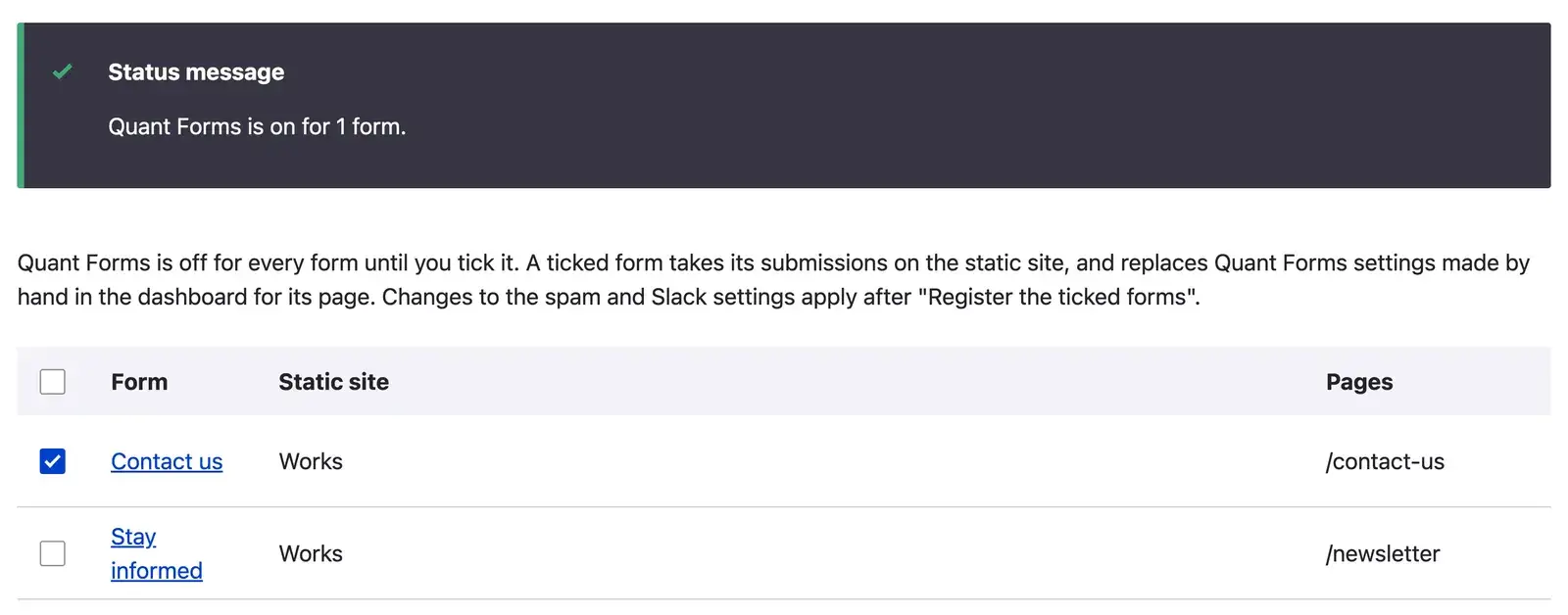
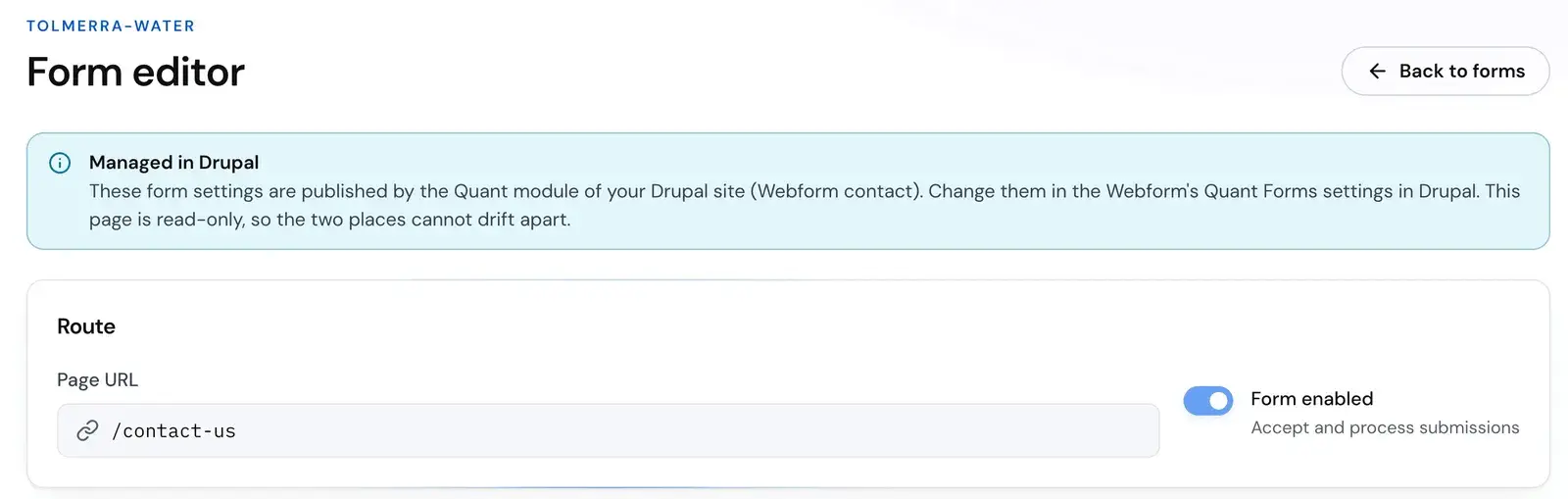
A test submission on the static site arrives under Form submissions in the Quant dashboard. The dashboard’s form editor shows the form as managed in Drupal, where its settings live.
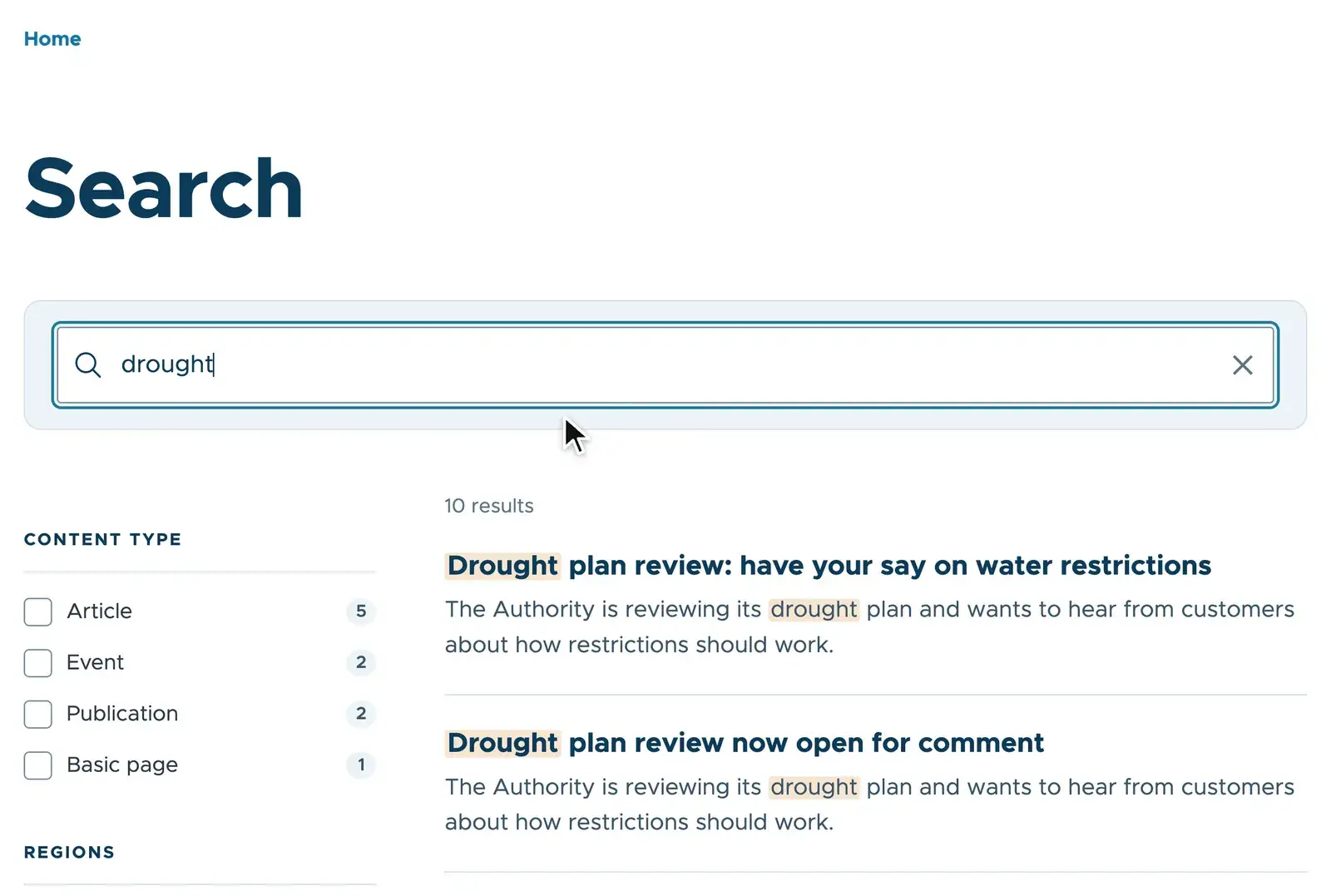
Create a search page makes a search page with filters from one screen. On the static site, the Quant search index answers the query.
Point the domain at Quant, so that visitors get the static pages. Drupal stays behind its login for the editors.
For every step, including the project setup and the module settings that the film does not show, see the guide From Drupal site to secured. It links the pages on seeds, forms and search for the detail.
What to check before you rely on it
- The module requests each page from the Drupal web server, then pushes it. The server must reach itself at the Webserver URL on Configuration > Quant. If it cannot, that page shows “Unable to connect to local webserver” (Local web server).
- A change that is on every page, such as a new search box, reaches the static site only when the pages are pushed again. Run the seed again after such a change.
- Quant Forms is off for each Webform until you tick it, and a form with Use Ajax on posts to Drupal, so the module does not register it. Some Webform features do not work on a static site. The forms page lists them.
- When you tick a form, Drupal becomes the source of its Quant Forms settings. The next publish of the page replaces any settings for that page that were made in the dashboard. Copy them into Drupal first.
- Drupal cron must run on a schedule. Cron renews the Quant login, works through the queue, and turns Quant Forms off for forms that have closed.
- Log in to Quant is for a site that publishes to one Quant project and is not installed in a subdirectory. Other sites connect with a project token.
- To create the project from the consent screen, you need permission to add projects in the organisation, and the organisation must be active. A trial organisation must first be activated in billing, with a payment card. Otherwise, create the project in the dashboard.
- Before 2.3.3, deleting a search page left its search box block behind, still pointing at the deleted page, so a search page created again at the same address showed no header search box. Version 2.3.3 removes the block with its page, and when you create the page again it repairs a block that an earlier delete left behind (2.3.3 release notes).
- In 2.3.1, a search page saved during installation or in maintenance mode is not published at that time. The page is listed with the changes that did not reach Quant, and the next save or a seed publishes it. Search pages saved before the upgrade to 2.3.1 are not published again until you save them or seed.
Secure the Drupal site that the editors use
After the move, the public reads only the static pages, so Drupal does not have to face the internet. Drupal still needs its updates, and the editors still sign in to it. These steps are the checklist that each CMS episode of the series ends with.
- Keep Drupal on a private network that only your editors can reach, for example a VPN or an office network. Then no request from the internet reaches Drupal.
- If editors must reach Drupal over the internet, send their requests through Quant with proxy rules (Maintaining CMS access), and add these steps:
- Put a second lock on the admin paths, with a password rule at the Quant edge above the proxy rules. See the guide A second lock on the admin areas, which the episode of the same name follows.
- Turn on the WAF on the proxy rules that reach Drupal, in report mode first and then in block mode. The WAF inspects requests on proxy rules only, and it does not inspect the static pages. See the guide Configure WAF for your site, which the episode The WAF, from report to block follows.
- Check the security headers of the project, and add a content security policy (Improve your security headers). The headers episode is not published yet.
- Keep a break-glass plan. When a critical Drupal flaw becomes public, disable the proxy rules that reach Drupal. The public site keeps its static pages, and the editors wait until Drupal is patched. See the guide Break-glass: switch the site to its static copy, which the episode of the same name follows.
- Restrict Drupal’s own address at your host, because the edge rules protect only the requests that come through Quant.
- Turn on two-factor authentication for the Drupal accounts (Security considerations).
Next in the series
The next episode is From WordPress site to secured, the same plan for a WordPress site. The lead article lists every episode.
Share